Can you save a Revit file to an older version?
Revit can't save back to an older release. Keep the older original, agree a common release for native editing, or send IFC or CAD files with their limits.
No. Revit can't save a newer file back to an older release: Autodesk's backward-compatibility rule covers RVT models, RFA families and RTE templates, and Revit LT models don't save backward either. If the recipient needs to keep editing the native model, agree a common Revit release or send an original saved before the upgrade.
I'd settle the release before the model leaves your hands, because a common native release keeps the editing work in Revit. Use IFC when the agreed task is reference geometry or an exchange model, and send CAD drawings when drawings are the deliverable.
One RVT, an untouched original and a newer work copy
Take an example called pavilion-2026.rvt. Keep that original in its 2026 state and make a separate working copy for Revit 2027. When you open the copy in 2027, the upgrade starts automatically; once you save it, that copy won't open in Revit 2026 again. The original you kept still opens in 2026, with the model as it stood before the newer work began.
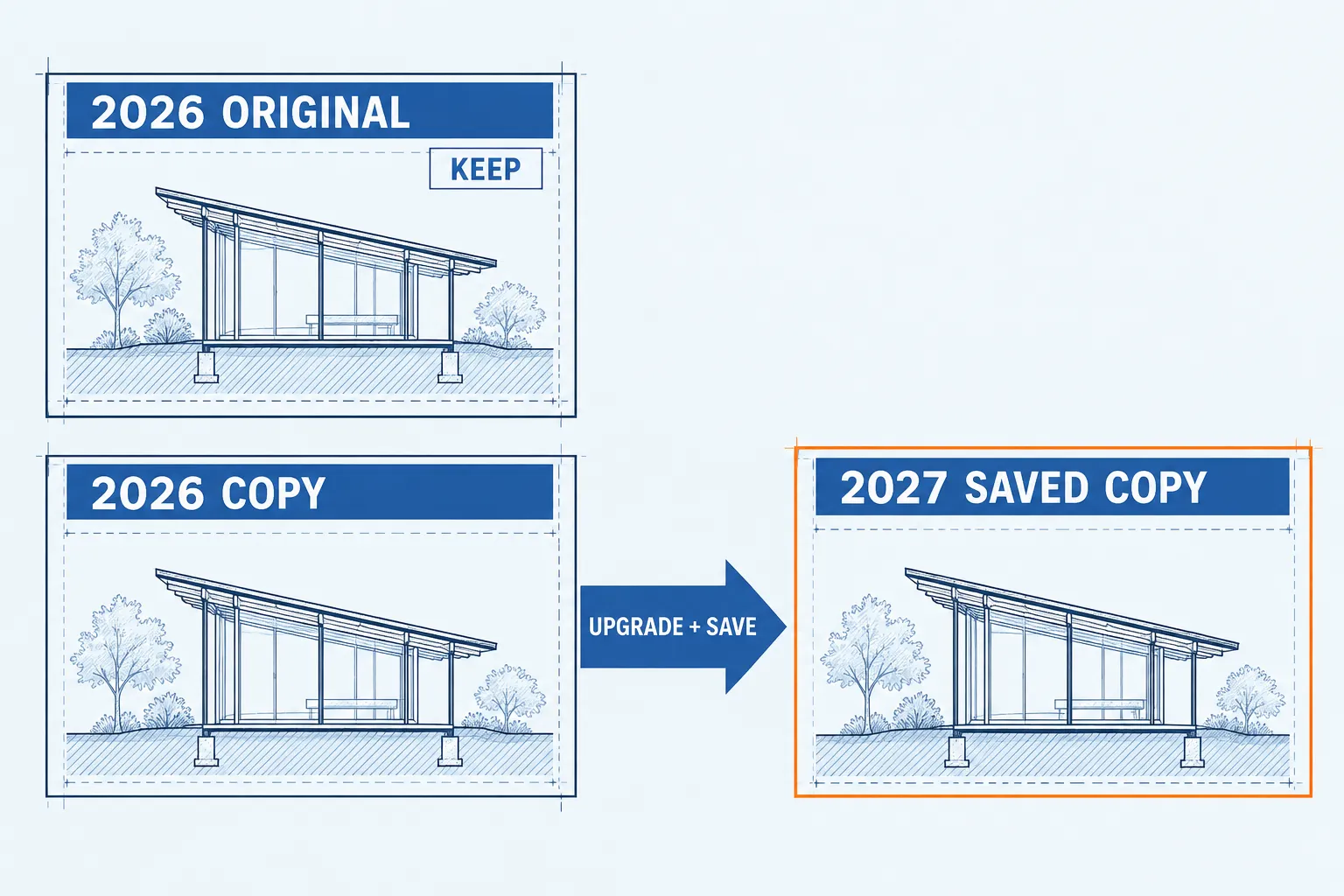
The saved release is what counts, not the file name. Renaming the newer copy pavilion-2026.rvt wouldn't make it a 2026 model again. Give the copy an unambiguous name such as pavilion-2027-work.rvt, and keep the protected original beside your handoff record.
Check the saved release before accepting an upgrade
Start the release you intend to use, then choose File > Open > Project. Select the model and check the release shown in the Open dialog Preview pane before opening it. If Revit offers an upgrade you didn't intend, choose Cancel Upgrade: the model isn't upgraded and doesn't open, so start the earlier release and open it there.
A double-click starts the most recently installed Revit release by default, which makes it a poor way to pick the release for an older project. Starting the intended release first makes that choice yours.
If the newer copy has already been saved, look for a backup made before the upgrade. Autodesk's restoration guidance separates that earlier backup from an IFC rebuild. The backup keeps its saved native state, but the edits made later in 2027 aren't in it, and restoring it doesn't carry them backward.
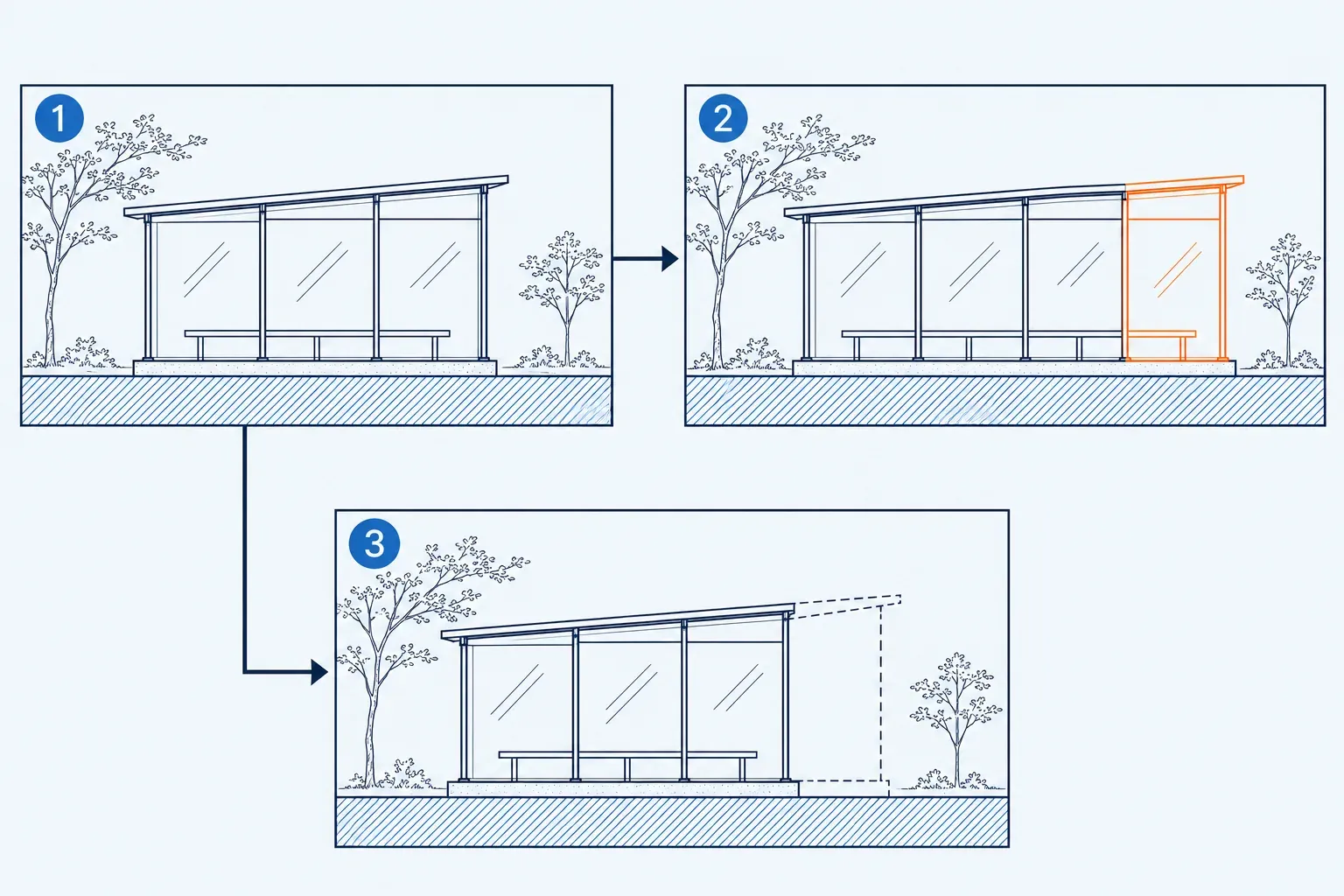
For a non-workshared model, Revit saves up to three backups by default in the model folder, as numbered files such as pavilion.0003.rvt, and About Backup Files says it purges the oldest once the folder passes that limit. So look before you save the upgraded copy again: every save in 2027 writes a new backup and can push the last pre-upgrade one out. The four-digit suffix counts saves, not releases, so check each candidate's release in the Preview pane, because a backup copied from a 2027 save is a 2027 file. First preserve the saved 2027 work copy under a separate name or in a separate folder. Then open the pre-upgrade backup in Revit 2026 and use Save As with a distinct recovery name, such as pavilion-2026-recovered.rvt. Check the recovered model in plan and section and confirm that the pre-upgrade content you need is present before deciding whether to replace a working file.
Choose the deliverable before choosing an export
| Recipient needs | Send or agree | Cost to allow for |
|---|---|---|
| Continued native model editing | A common Revit release, or an untouched original in the required release | The earlier original lacks later edits; a coordinated upgrade changes the project release. |
| Geometry and properties for reference | An IFC schema supported by the recipient, linked into its model | Check placement, mapping and required content. Native parametric behavior isn't assured. |
| A new model built from exchanged content | A supported IFC opened in the recipient release | A template-based model, with possible generic objects and cleanup; not recovery of the original model intelligence. |
| Selected drawings or CAD views | DWG or DXF, with the required AutoCAD file version | Drawing export and line/color checks; not an older native RVT. |
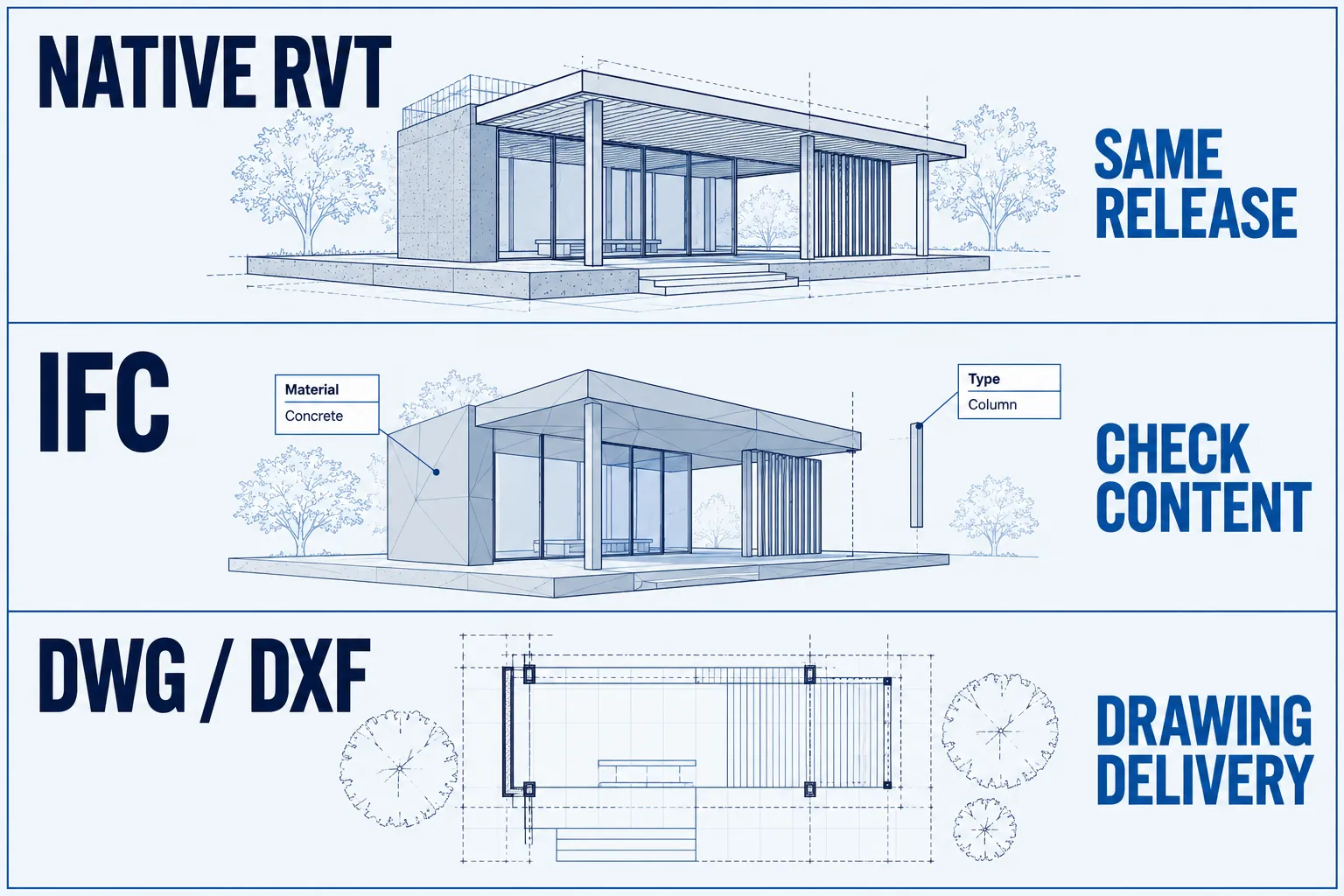
IFC carries building objects and their parameters through IFC containers and mappings. It works for coordination, but Autodesk's restore article warns that IFC can drop parametric behavior, turn elements into generic objects and leave cleanup to do. A wall or door that looks right in the exchanged model doesn't prove its constraints, hosting or family logic survived.
A documented IFC route from Revit 2027 to Revit 2026
Here the sender runs full Revit 2027 and the recipient runs Revit 2026. Revit 2027 exports IFC4, IFC2x3 and IFC2x2. On the receiving side, the Revit 2026 IFC help lists IFC2x3, IFC2x2 and IFC2x for Open or Link, and IFC4 for Link only. An IFC schema name isn't a Revit release year, so for this example choose IFC2x3 if the 2026 recipient needs to open the IFC as a new model. The lists don't change for Revit LT: Revit LT 2026 opens or links the same schemas and LT 2027 exports the same three, so the route holds when either side runs LT.
- In Revit 2027, choose File > Export > IFC. Set the target name and folder, then pick the setup for the agreed schema under Current selected setup. Export writes the IFC and an export log to that folder.
- For a new model in Revit 2026, choose File > Open > IFC and select the IFC2x3 file. Open IFC creates a new model from the default template, so set the template and class mapping in Import IFC Options first if the default won't do. The import log lands beside the IFC as
<ifc_file>.ifc.log. - For reference in an existing 2026 model, open that host and choose Insert tab > Link panel > Link IFC. Select the file, pick the Positioning option (Auto - Origin to Origin in most cases, Auto - By Shared Coordinates if the host uses shared coordinates), then click Open. Link IFC creates and links an intermediate model named
<ifc_file>.ifc.RVT, along with a log and a shared-parameters file. That RVT extension doesn't mean the original native model was downgraded. - Have the recipient read the import or link log and confirm the geometry, location and properties the task needs before accepting the delivery. If the recipient needs IFC4, use the 2026 Link IFC route, because IFC4 is link-only in 2026.
If the next task depends on flexing a native family or continuing its parameter relationships, return to the common-release option rather than treating an IFC import as an equivalent editable original.
For drawings, Revit 2027 uses File > Export > CAD Formats > DWG or DXF. Select the views and sheets, then choose the required AutoCAD version under Files of type. The DWG/DXF export procedure sets the CAD file version, not a Revit release. Expect the export to change some linework: overlapping lines can be merged, shortened or removed, and in 3D views, phase color overrides on patterns don't carry over. Agree the AutoCAD file version and the views or sheets the recipient needs before you export.
Families and templates have the same release restriction
An RFA family saved in a newer release can't be back-saved for the older one, and the same rule covers RTE templates. In Revit 2027, choose File > Open > Family and check the family's saved release in Preview. Ask for an original saved in the required release. If none exists and native editing is essential, rebuilding the family in that release is a separate piece of authoring work.
Don't treat IFC geometry as a recovered, flexing RFA. The exchange can keep useful shape or properties while losing the logic the family needs. The differences between these extensions are covered in Revit file types.
Agree the release for the whole model set
If the recipient can move to 2027 under the project's requirements, agree that release before sending the newer native file. Preserve the earlier originals first and state the release in the handoff. Check the available installation route separately when you need to install another Revit release.
Include linked RVTs in that discussion. Opening a host can temporarily upgrade a linked model, but saving the host doesn't save that upgrade to the linked source. A permanent upgrade means closing the host, then opening, upgrading and saving each linked model on its own. For the separate task of coordinating elements across links, see Copy/Monitor coordination with linked models.
Stop the single-file approach at a workshared or cloud model. A workshared upgrade concerns the central model, and recovery runs through the project's coordinated workflow. The numbered-backup steps above apply to a non-workshared file; they aren't a recipe for renaming, detaching or restoring a central model. Agree the target release and the upgrade or recovery workflow with whoever manages that central or cloud model before changing it. Exports, links and file formats beyond this handoff are in the other file and link guides.